Members
Manage your team members and control access permissions
Manage your team through Settings > Members to control who has access to your workspace and what they can do. See who's currently active in your workspace. Adjust permissions as roles change. Remove access when needed.
Workspace Roles
Each member of your Saleshunt workspace is assigned a role that determines their access level:
| Role | Permissions |
|---|---|
 Admin Admin | • Full access to all features and settings • Can manage billing, workspace settings, and credentials for integrations • Can add or remove team members and change their permissions |
 Member Member | • Access to core prospecting and research features • Can create and edit lists • Cannot manage workspace settings or other members |
Workspace Roles vs Resource Permissions
It's important to understand the difference between workspace roles and resource permissions:
Workspace Roles
Workspace roles (Admin and Member) control overall platform access and are assigned when users are invited to join your workspace. These determine what features and settings a user can access across the entire Saleshunt platform.
Resource Permissions
Resource permissions (Owner, Editor, Viewer) are assigned when sharing specific resources like lists with other workspace members. These control what actions users can perform on individual shared resources.
| Permission | Access |
|---|---|
| Owner | Full control over the resource, including ability to share with others |
| Editor | Can view, edit, and enrich the resource |
 Viewer Viewer | Read-only access - can view and export data but cannot edit, enrich, or perform searches |
Note: Viewer permissions are only available at the resource level through the sharing feature. Users with viewer access to a list cannot perform enrichment operations or use the search functionality.
Inviting Team Members
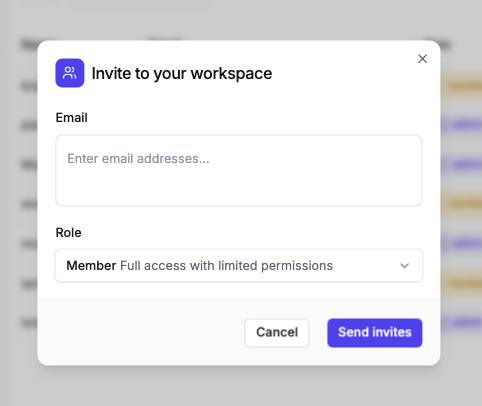
Admins can easily invite new team members to the workspace through the Members page. Simply click the "Invite" button, enter the email addresses of your colleagues, and select their role (Admin or Member). Invited users will receive an email with instructions to join your workspace.
Managing members
Changing roles: Admins can adjust any member's role at any time from the Members page — promote a member to admin, or step an admin down to member. To give someone access to specific lists only, use the sharing feature to grant editor or viewer permissions instead.
Revoking access: Admins can remove a member from the ⋯ menu on their row. Access is revoked immediately and the workspace disappears from that person's workspace picker.
Leaving a workspace: If you're not the only admin, you can leave a workspace from your own member row. You can rejoin later from the workspace picker.
Need Help?
For questions about team management or permission settings, contact our support team.