Columns
Ask powerful questions at scale by turning columns into research agents
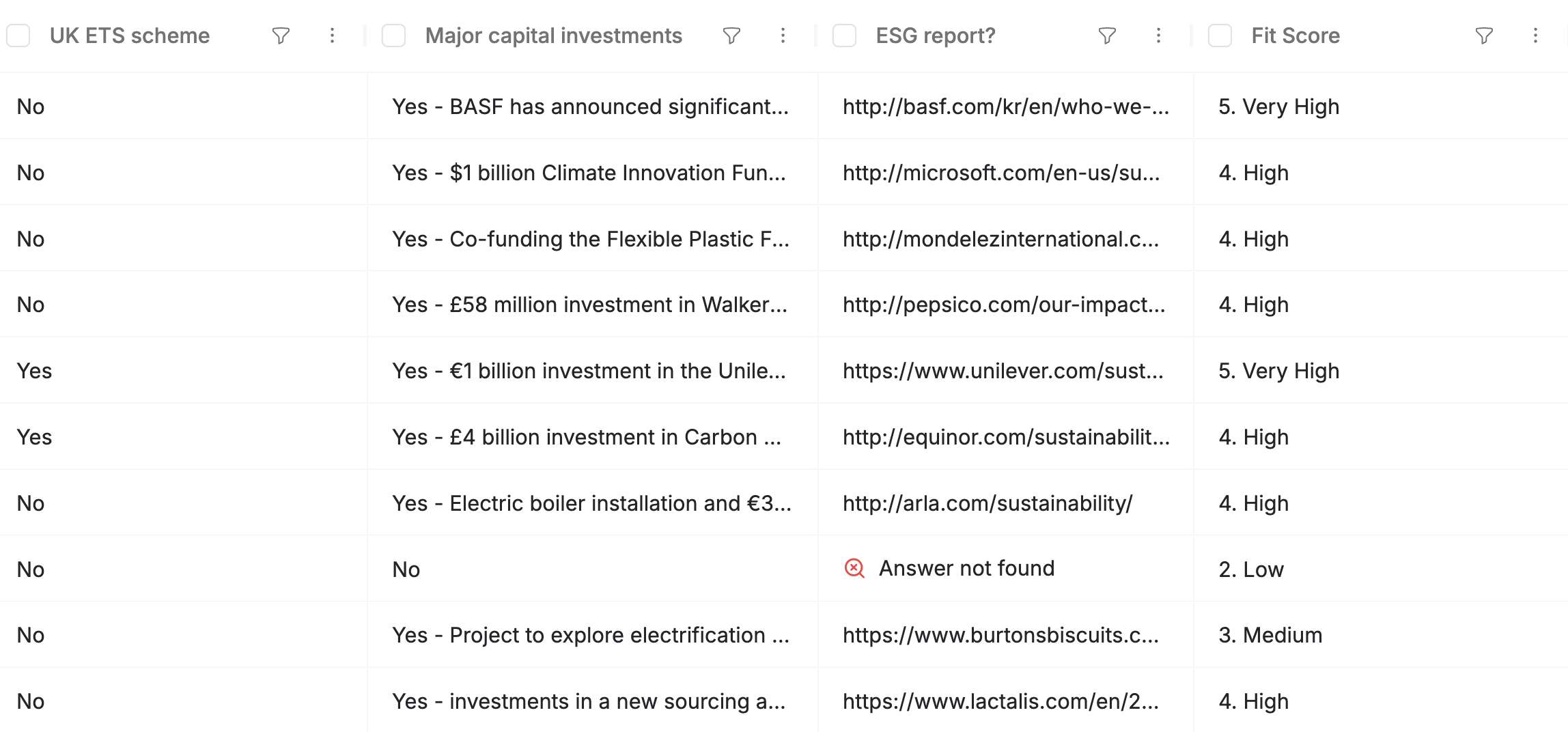
In Saleshunt, every column isn't just a place to store data — it's a question you're asking at scale. Instead of manually searching and copying information, you ask your question once, and AI agents find the answer for every company in your list.
Each column runs as a scalable research task, uncovering insights like “Has raised funding?” or “What AI tools does this company use?” — giving you a granular, always-updating view of your market.
How Columns Work
Adding a column is like assigning an analyst to every row. You write the question once, and Saleshunt handles the rest — running hundreds of research agents in parallel to find the answers.
Once created, simply select the cells you want to enrich and hit Enrich. The AI reads your prompt, searches public data like their websites, LinkedIn pages, and recent articles, and writes a custom answer for each row.
Adding a Column
Two ways to add a column to your List.
1. From the column UI
Click the + at the end of your columns to open the column editor.
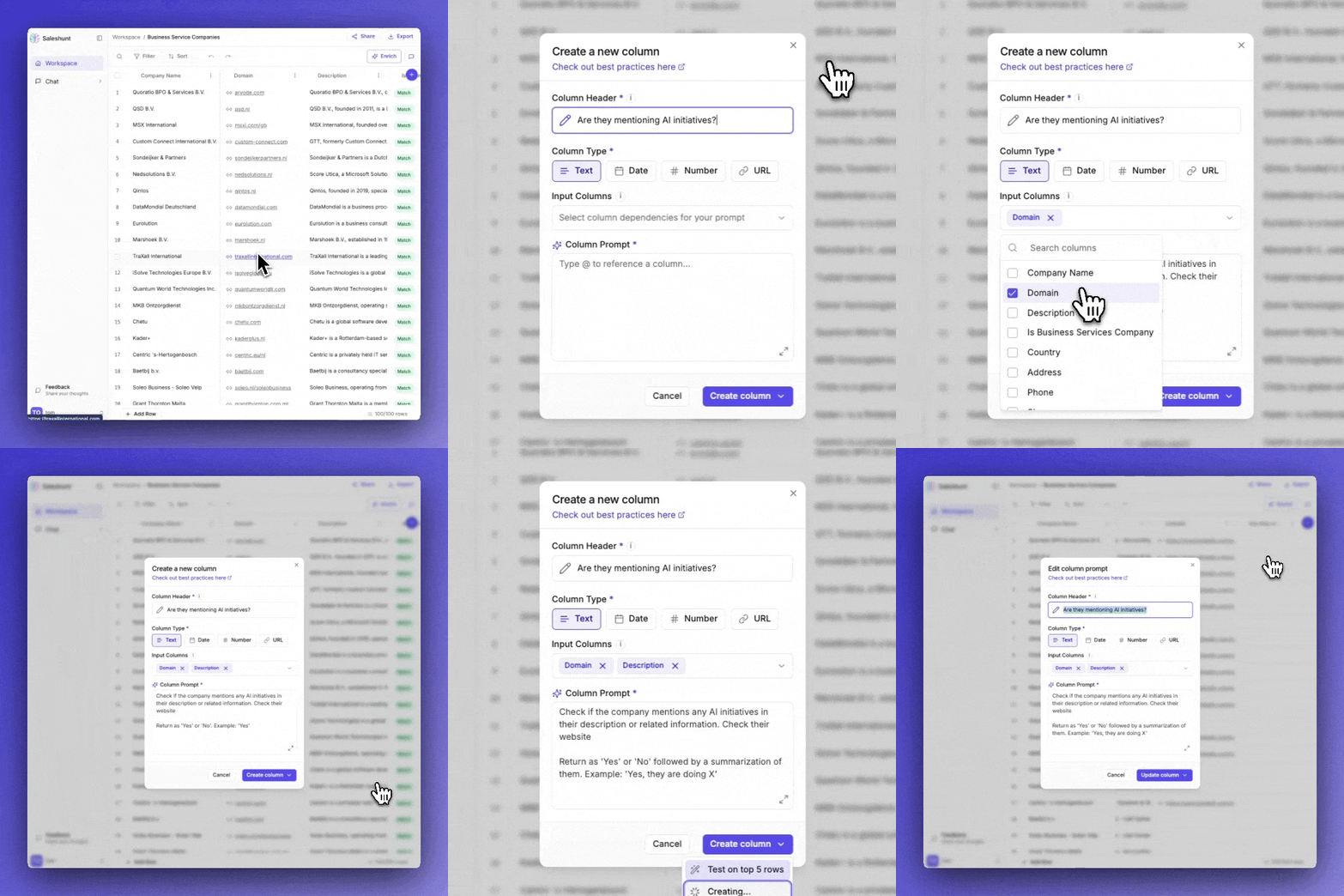
- Name your column — a short, specific question (e.g. "Mentions AI")
- Set the column type — Text, Date, Number, or URL
- Review the prompt — Saleshunt auto-generates an AI-friendly version. This is where you apply your domain expertise: tell the AI exactly what to look for and where, like briefing a research analyst
- Add dependencies (optional) — reference other columns for context
When you type a column name, Saleshunt suggests a detailed research prompt you can refine before running. Click the expand icon to open a larger editor for advanced prompt editing.
2. From the side chat
You don't have to open the editor at all — just tell the side chat what you want to know about the companies in your List. For example: "What's the founding date of these companies?"
The side chat prepares a column card with a suggested title and prompt, and lets you choose how many rows to enrich (top few, all, or a custom set). Edit the title or prompt if you want, then click Approve to create the column and run it in one step.
The prompt is your superpower — you're the domain expert who knows which signals matter and where to find them. Saleshunt provides the scalable automation to execute that expertise across hundreds of companies at once.
Two habits make a prompt land:
- Be unambiguous. Spell out exactly what you want — "Does this company sell to other businesses?" beats "Are they B2B?". The less room for interpretation, the more consistent the answers across rows.
- Ask for what's findable. If you couldn't find it yourself by browsing the web, the agent probably can't either. See What we can and can't find below.
Learn more: Column Dependencies guide
Test on a few rows first to check output quality before enriching at scale. It's the fastest way to fine-tune your prompt.
Column Types & Output Control
Choose from four column types: Text (default), Date, Number, or URL. Set the type when creating a column or change it anytime via the three dots menu in the column header.
How you frame your question determines the output format:
- Ask "Does this company sell to enterprise?" for a yes/no answer
- Request "What does their website say about AI?" for detailed insights
- Use "Classify as: platform, integrator, or vendor" for categorization
- Try "Rate ICP fit from 1-5" for scoring
The AI adapts to your prompt style and formats responses accordingly.
What We Can and Can't (yet) Find
Every column you create spins up a team of AI agents that search the web, tap into third-party sources, and extract structured insights at scale. There's a lot they can do, but the same feasibility test from search applies here.
If you could find it yourself by browsing the internet, Saleshunt can probably find it too. If it needs insider access, a login, or a crystal ball, it can't. For things that aren't directly findable (a private revenue figure, an internal plan), ask for an observable proxy instead — recent funding, job postings, technologies on their site.
- Public data from company websites, press releases, directories, and databases
- High-accuracy contact details from public sources, enriched with third-party providers
- Financial data from public reports and partner integrations (revenue, funding, EBITDA)
- Some gated information behind logins / paywalls via third-party integrations and scraping tools
- Trend signals based on market activity and company behaviour
- Data that simply doesn't exist online or hasn't been published yet
- Private or personal contact info not intended for public use
- Confidential financial records like private P&Ls or internal valuations
- Content locked behind enterprise-grade authentication or paywalls without extractable text
- Guaranteed predictions about the future (e.g. "Will this company raise soon?")
If a Column comes back empty or low-confidence, the answer probably isn't publicly available in the form you asked for. Try rephrasing toward an observable proxy, or check that the data exists online at all.
From Question to Insights
Columns are your superpower for researching at scale. What used to take hours of Googling, now takes seconds — across hundreds of companies. Just ask your question once, and Saleshunt finds the answers.