Creating Campaigns
Turn a List into personalised outreach in three steps — pick the List, confirm who to reach, and set the message.
Once your List is enriched and you've found the right contacts, a campaign turns it into personalised outreach. Two ways to start:
- From Campaigns, click New Campaign.
- From a List, select rows, then Actions → Add to Campaign.
The builder walks you through three steps: Selection → Receivers → Messaging.
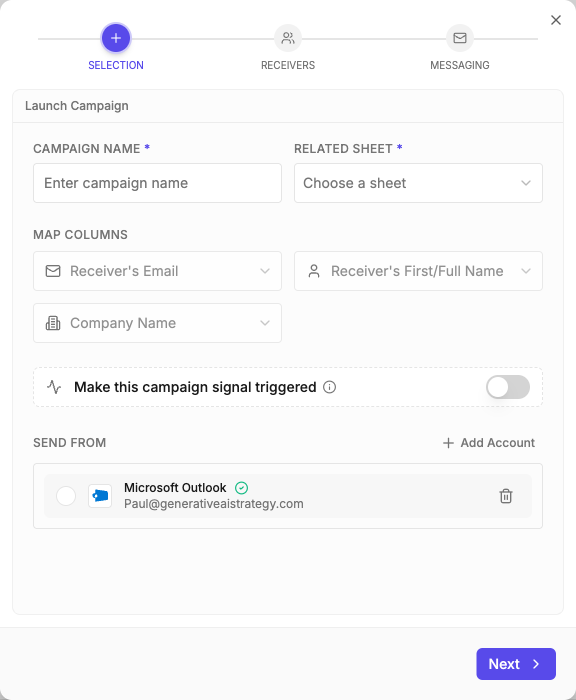
Selection
Name the campaign and choose the List to reach out to (the Related Sheet field). Map three columns so Saleshunt knows who to contact — Receiver's Email, Receiver's Name, and Company (it suggests sensible defaults you can adjust). Then pick the connected inbox to send from — set one up first under Email Accounts if you haven't.
There's also a Make this campaign signal triggered toggle, for outreach that fires when something changes in the market.
Receivers
Review who's in the campaign before anything sends, and add or remove people. See Managing Receivers.
Messaging
Shape the message: pick a best-practice template or paste your own example email, then set tone and language. Saleshunt personalises each email per recipient from your research. More in Campaign Settings.
After you launch
Saleshunt starts drafting personalised emails for your recipients. From here:
- Review and approve drafts in the Inbox — it holds a small sample first, so you can check the messaging before the full batch generates.
- Adjust settings anytime — send windows, daily limits, follow-ups — in Campaign Settings.
- Add more people later from the Receivers tab.