Campaign Walkthrough
Navigate your campaigns and manage outreach
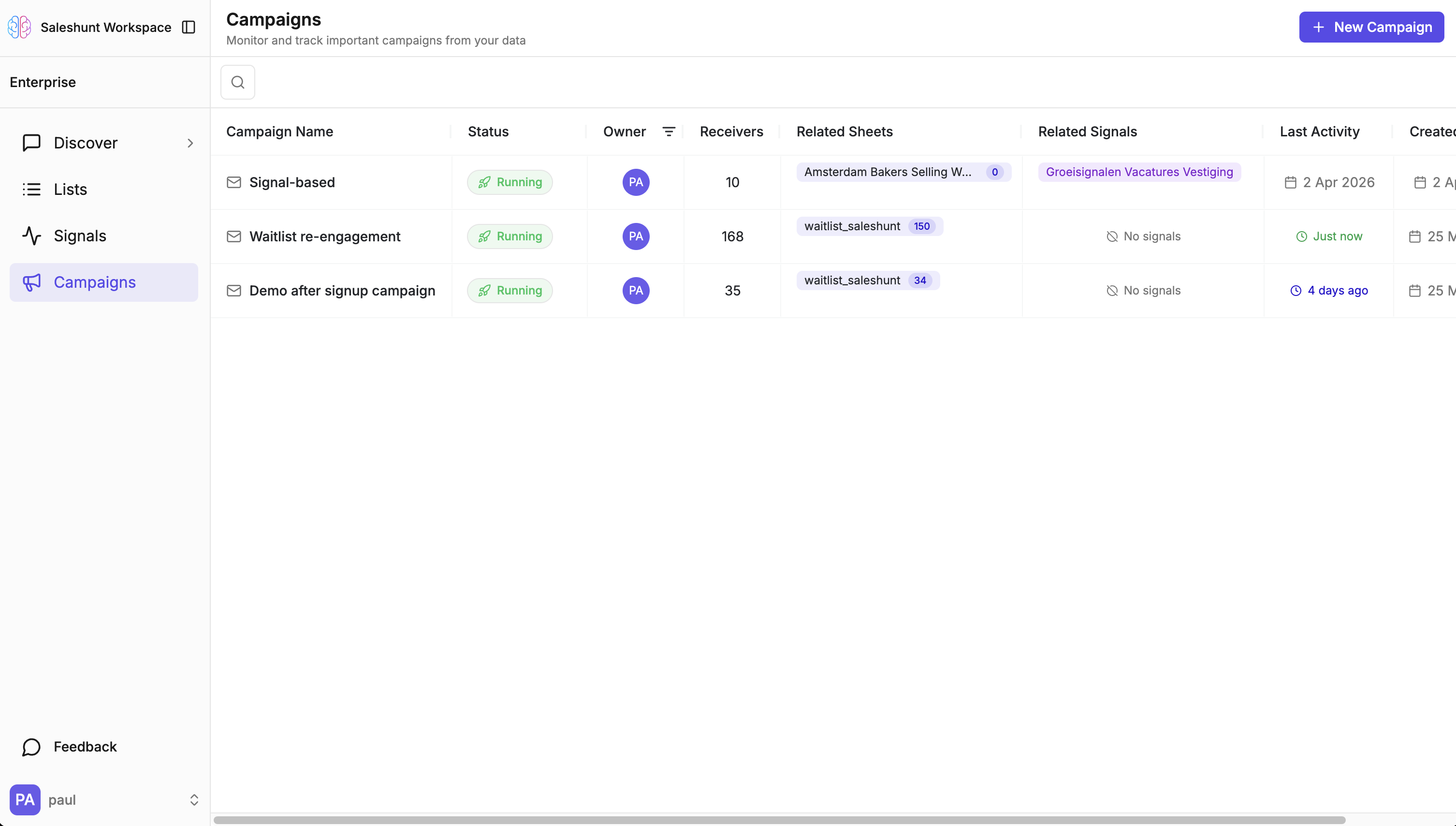
Campaign Overview
Campaigns tab shows all campaigns with receiver count, data source, and status. Quick actions: Pause or Share campaign.
Click any campaign to open detail view with 4 tabs.
Campaign Detail Tabs
1. Inbox Tab (Most Important)
View all drafted, queued, sent, and replied messages. Approve drafts individually or bulk approve. Edit before sending. Reply to conversations.
System handles: Sending limits, pacing, send windows automatically.
See Email Drafts & Sending for detailed approval workflow.
2. Receivers Tab
All enrolled leads with engagement tracking (opens, clicks, replies) and statuses. Add new receivers or remove before contact.
See Managing Receivers for details.
3. Performance Tab
Campaign metrics, engagement trends, deliverability health.
See Performance & Analytics for details.
4. Settings Tab
Configure send windows, daily limits, follow-ups, domain verification, auto-pause thresholds, campaign sharing.
See Campaign Settings for details.
Typical Workflow
- Campaign Overview → Select campaign
- Inbox → Approve drafts (review first 10)
- Receivers → Check engagement, add leads
- Performance → Monitor reply rates
- Settings → Adjust based on performance
Check Inbox tab daily to approve new drafts. System generates continuously up to your daily limit—regular approval keeps pipeline flowing.
Next Steps
- Creating Campaigns - Set up your first campaign
- Email Drafts & Sending - Deep dive on draft approval
- Performance & Analytics - Track and optimise